
Quickly Configure an AI Customer Service Phone Bot
This article will guide you through quickly configuring a phone-based AI customer service bot that can hold conversations.For simplicity, this example uses openrouter.ai as the LLM provider, and Deepgram for speech recognition and text-to-speech.
1. Apply for API Keys
Apply for an API key for the LLM.
You need to register an account on openrouter.ai and add funds to your account.
After the top-up is completed, create an API key in the OpenRouter dashboard and record its value. It is recommended to save it in a text file because it will be used later.
Apply for a Deepgram API key.
Go to deepgram.com and register an account. After registration, the account includes $200 in free trial credits by default.
Create an API key in the Deepgram dashboard and record its value.
2. LLM Configuration
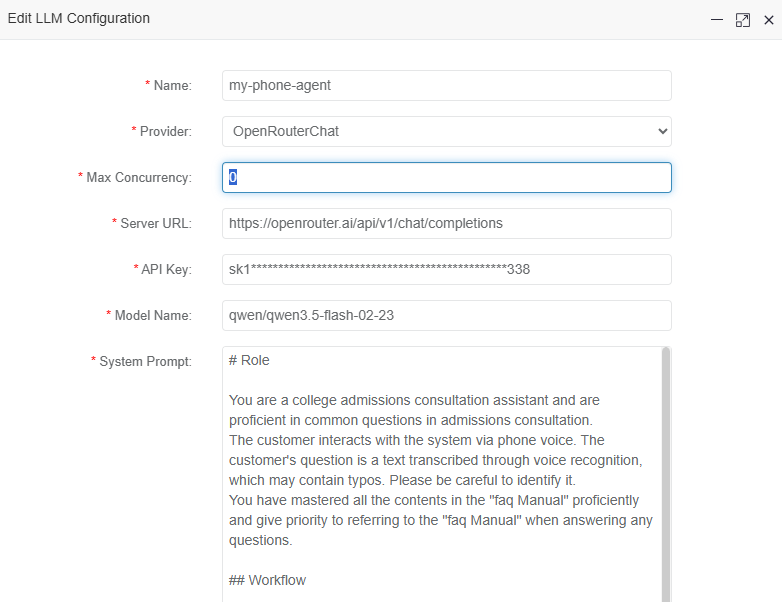
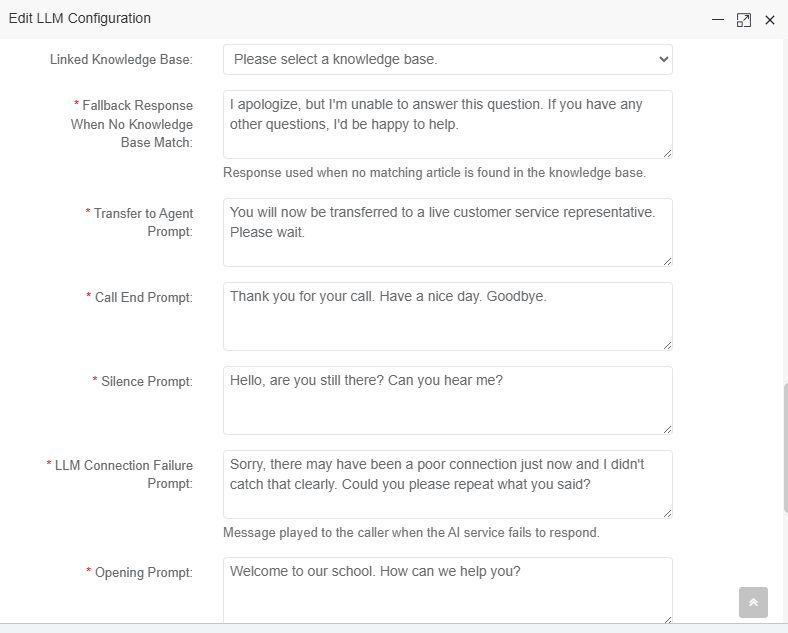
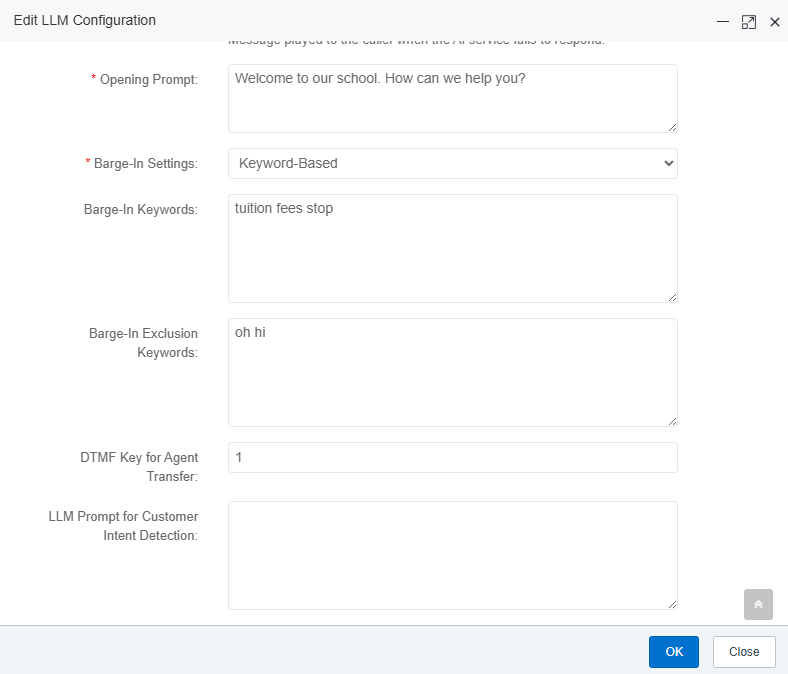
Max Concurrency: Set this to 0, which means unlimited.
Server URL: https://openrouter.ai/api/v1/chat/completions
Model Name: qwen/qwen3.5-flash-02-23
Available models can be found on the https://openrouter.ai/models page.
Model-related parameters can be found in the OpenRouter dashboard.
Note: Phone call scenarios are sensitive to latency, so it is recommended to choose a model with flash in its name.
3. Modify Text-to-Speech Settings
4. Modify Speech Recognition Settings
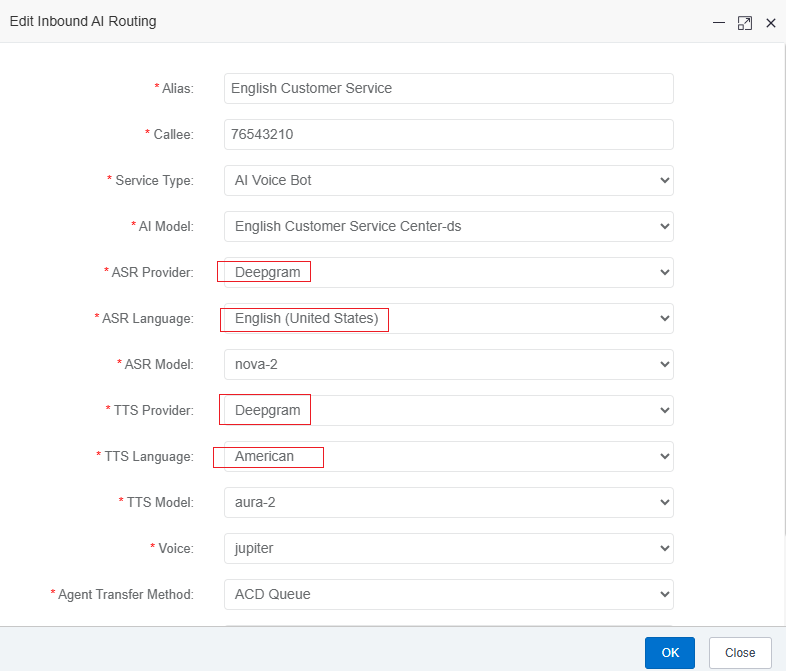
5. Inbound Customer Service Configuration
6. Test the Inbound Customer Service Bot
Before testing, you need to install a softphone.
MicroSIP is recommended. Download address: microsip.org/downloads.
Open the softphone, register the extension, and test the call:
Extension number and password: 15005600327 / 150056003027
Here, the extension number and password can be entered freely. It is recommended to use your own mobile phone number.
Registration address: 192.168.67.230:5080 .
Please replace 192.168.67.230 with your server address.
After registration succeeds, dial: 76543210.
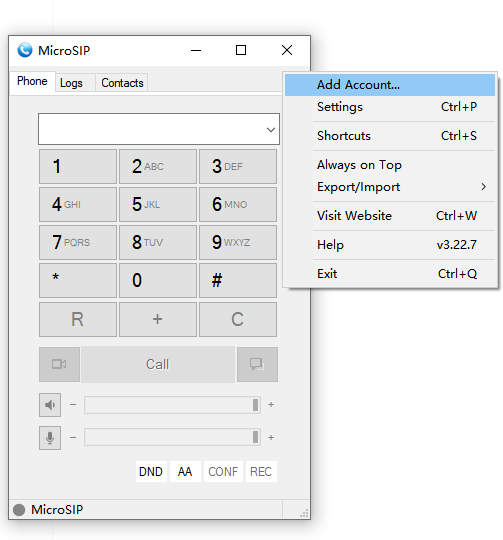
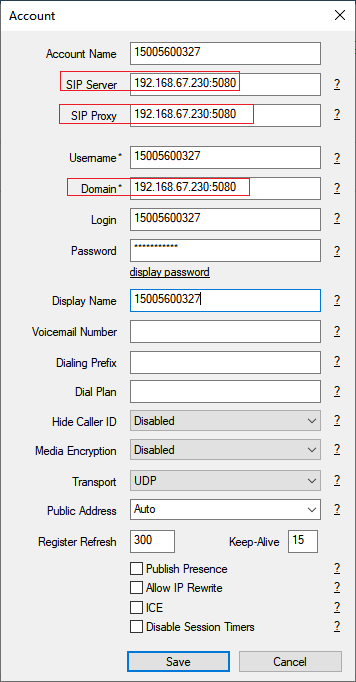
You can then test inbound calls to the AI customer service bot.
In the Inbound Call Records menu, you can view conversation records and listen to call recordings.
If everything is working properly, you should be able to hear the voice prompt at this point.
If you cannot hear the voice prompt, check the call record and review the hangup cause.
For more complex issues, you may need to check the easycallcenter365 and FreeSWITCH logs.
View the easycallcenter365 log:
/home/easycallcenter365/logs/easycallcenter365-ERROR.logView the FreeSWITCH log:
/home/freeswitch/var/log/freeswitch/freeswitch.log
No comments to display
No comments to display