
Outbound Campaign Configuration
a. Add a Sip Trunk
b. Add an LLM
c. Create an outbound campaign
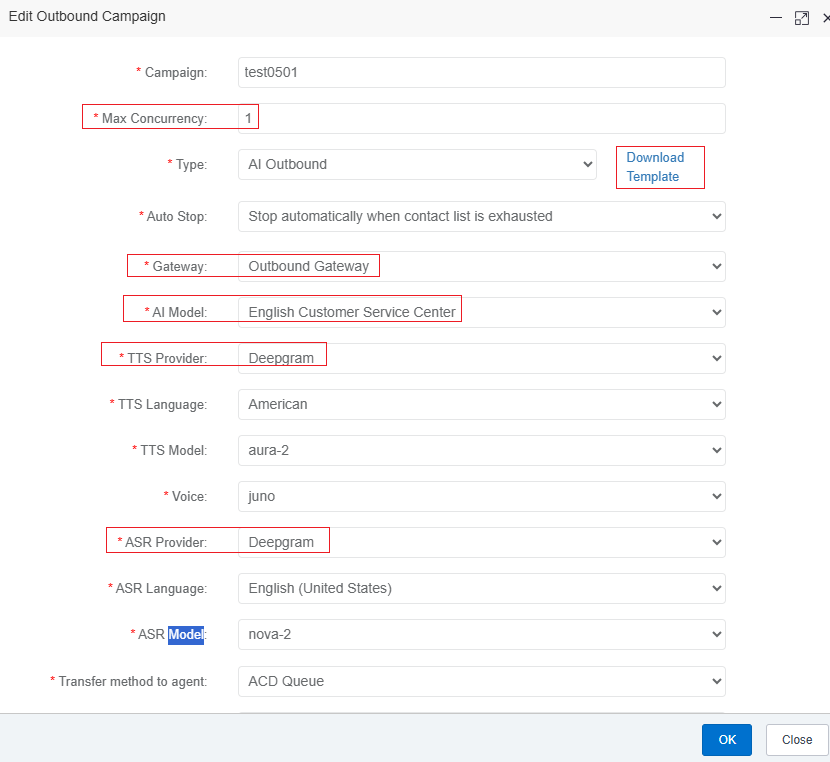
Download the data import template: In the Campaign Type row, click Download Template at the end of the row to download the Excel template for AI outbound campaigns. After the campaign is saved, open the Excel template, edit the list of phone numbers to be called, and save it. In the campaign list, find the outbound campaign you just created, click the Upload button, and select the Excel file you just edited.
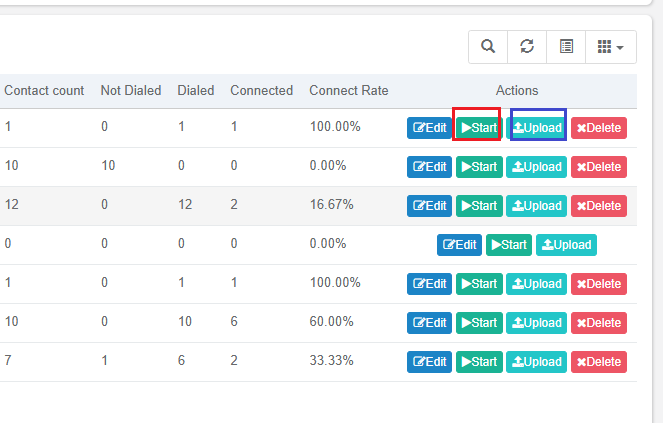
Note: If the server configuration is 4 CPU cores / 8 GB RAM, do not import more than 50,000 records in a single Excel file, otherwise an error may occur. If the server configuration is 8 CPU cores / 16 GB RAM or higher, it can normally import 100,000 records in a single batch.
Finally, click the Start button to start the campaign.
d. Troubleshooting
For logs and troubleshooting, you can view the hangup cause in the outbound call records.
Go to AI Call Records to query outbound call records.
e. Data Export
Go to AI Call Records , select an outbound campaign, and export the outbound results for the selected campaign.